
Pro Features Overview
Deep Ask Plugin Quick Start Guide
📖 Introduction
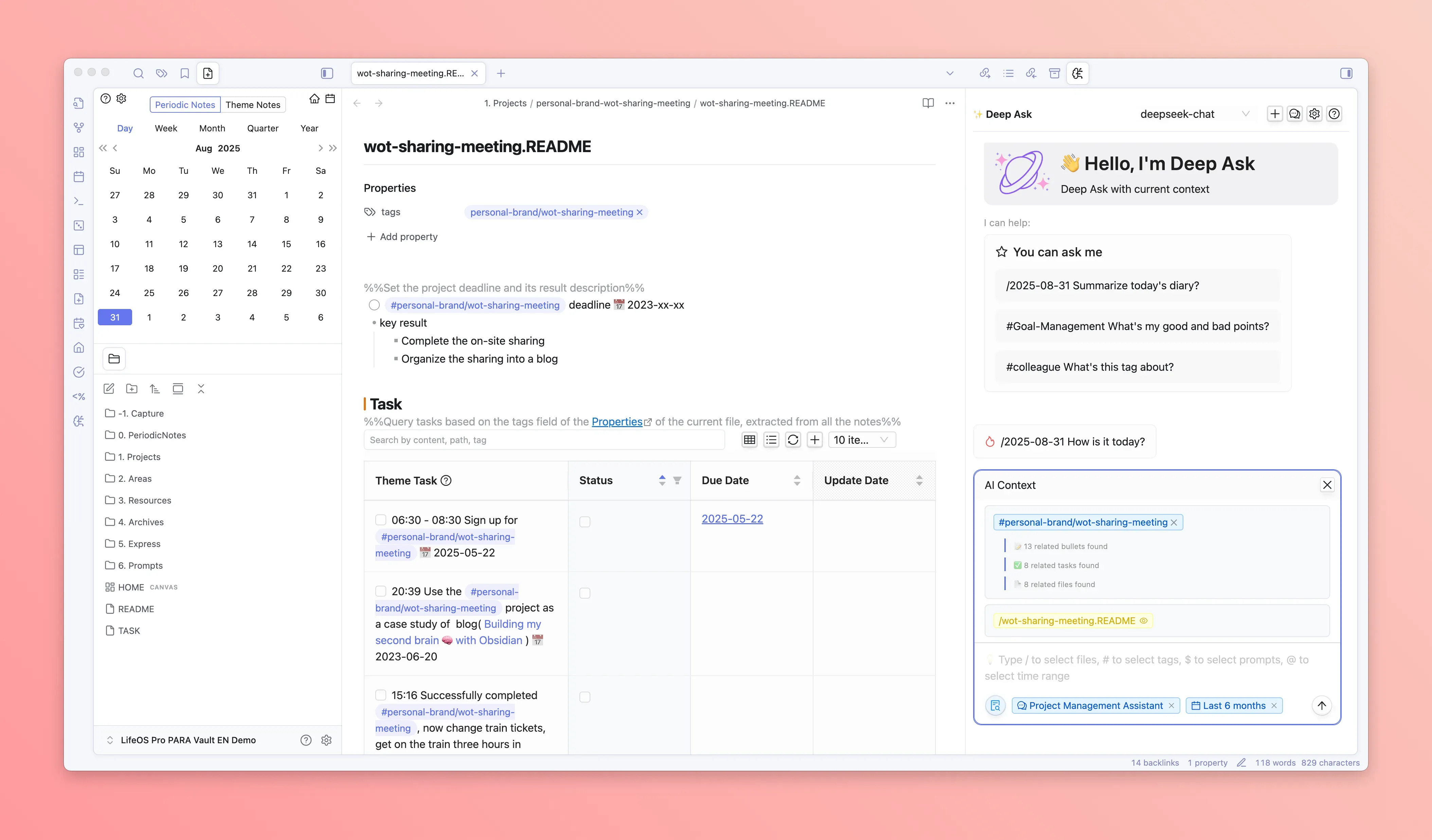
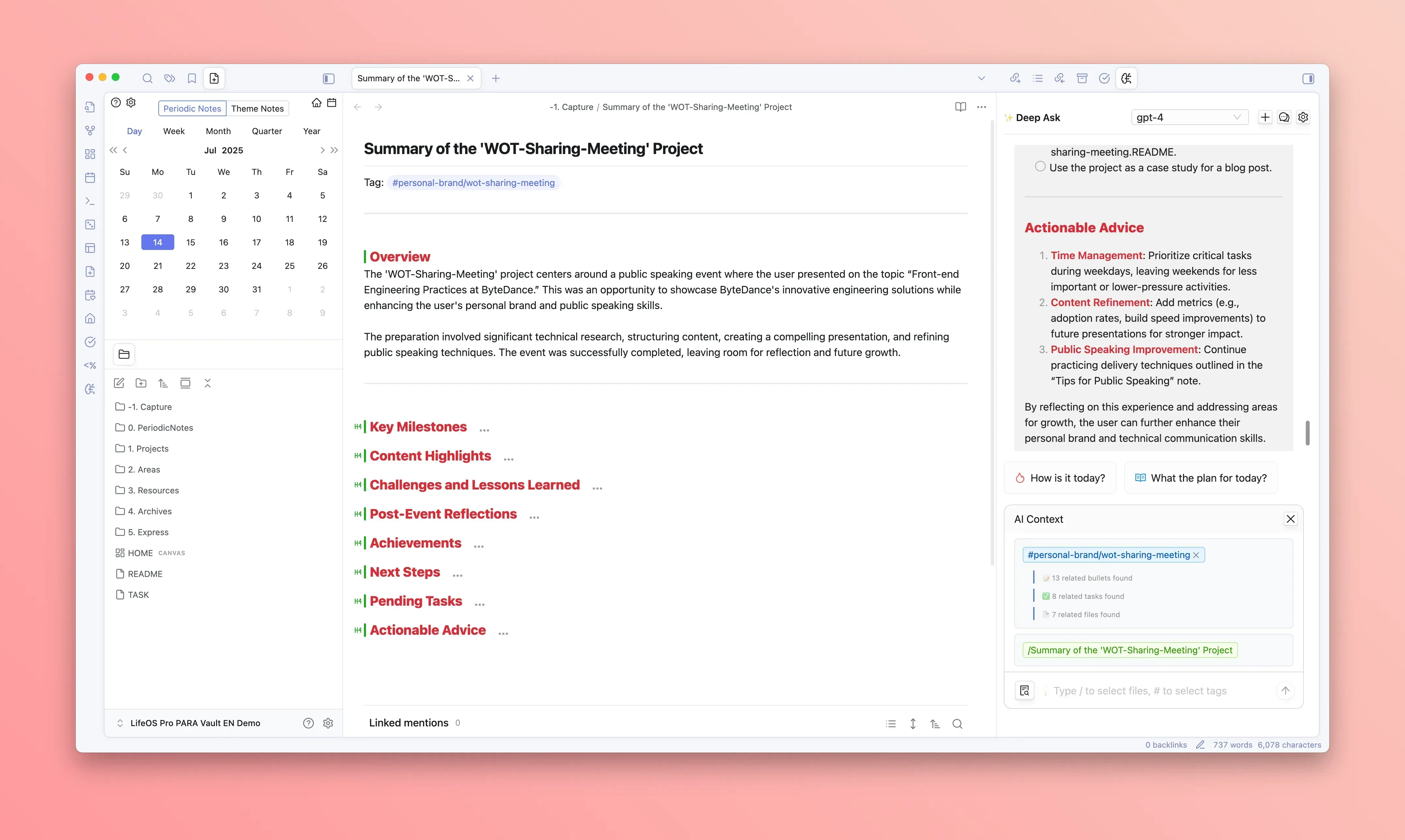
Deep Ask is a powerful Obsidian AI chat plugin designed to enhance your knowledge management experience. By integrating multiple AI models and local CLI agents, Deep Ask can understand your note content, support Codex CLI or Claude Code CLI, and provide intelligent question-answering, content generation, and knowledge retrieval.
🌐 Chrome Extension
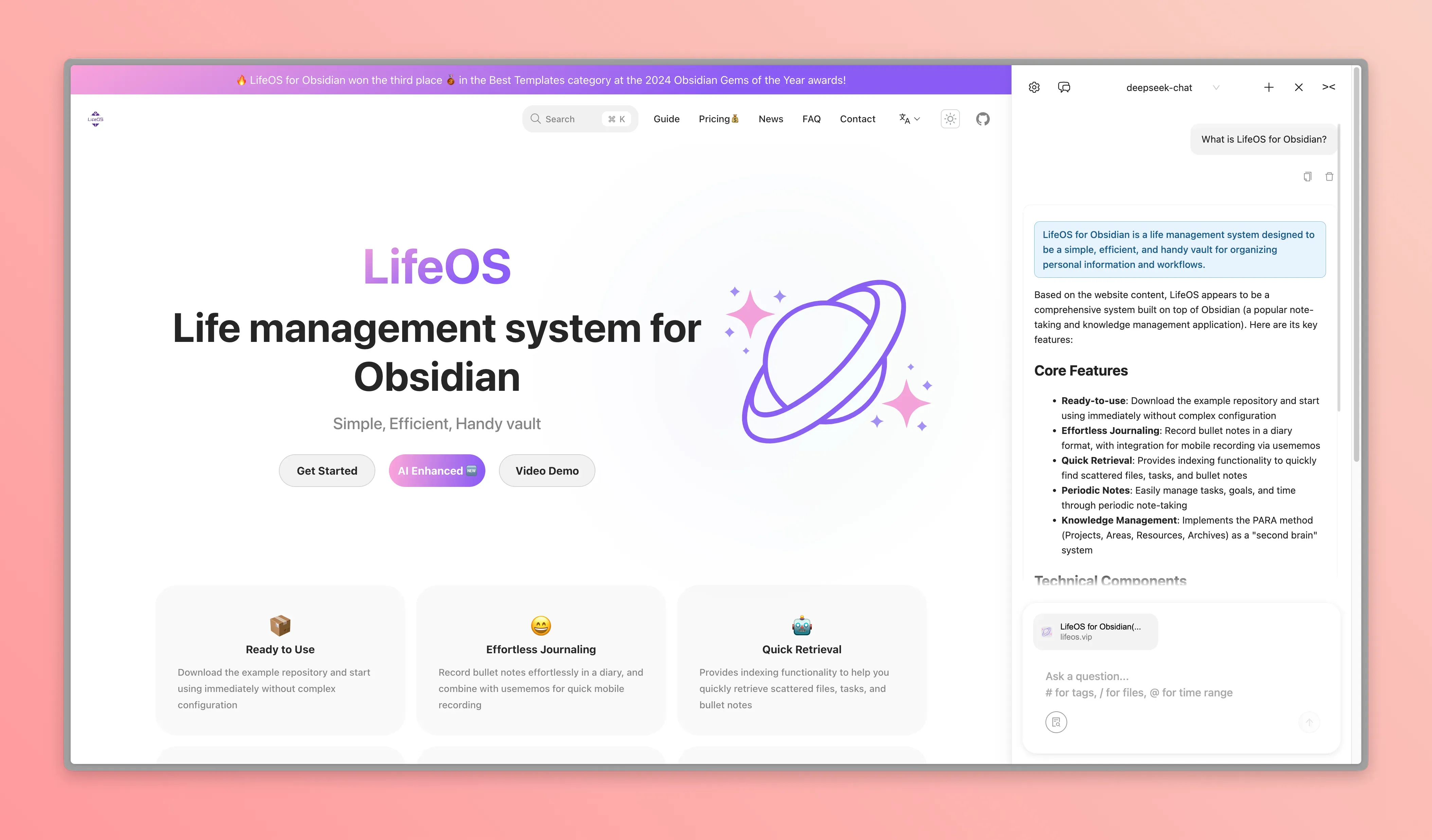
Deep Ask now offers a Chrome browser extension, allowing you to seamlessly use AI assistant features while browsing the web!
Download: Chrome Web Store - DeepAsk AI · Stable Feishu link: Chrome / Edge manual package (ZIP)
Manual installation (Chrome / Edge)
- Download the ZIP and extract it to a folder you will keep.
- Open
chrome://extensionsin Chrome oredge://extensionsin Microsoft Edge. - Enable Developer mode, choose Load unpacked, and select the extracted folder.
- Keep the DeepAsk Obsidian plugin enabled, then open the DeepAsk extension from the browser toolbar.
The Feishu package uses a stable link and is replaced in place when a new version is released.
Key Features
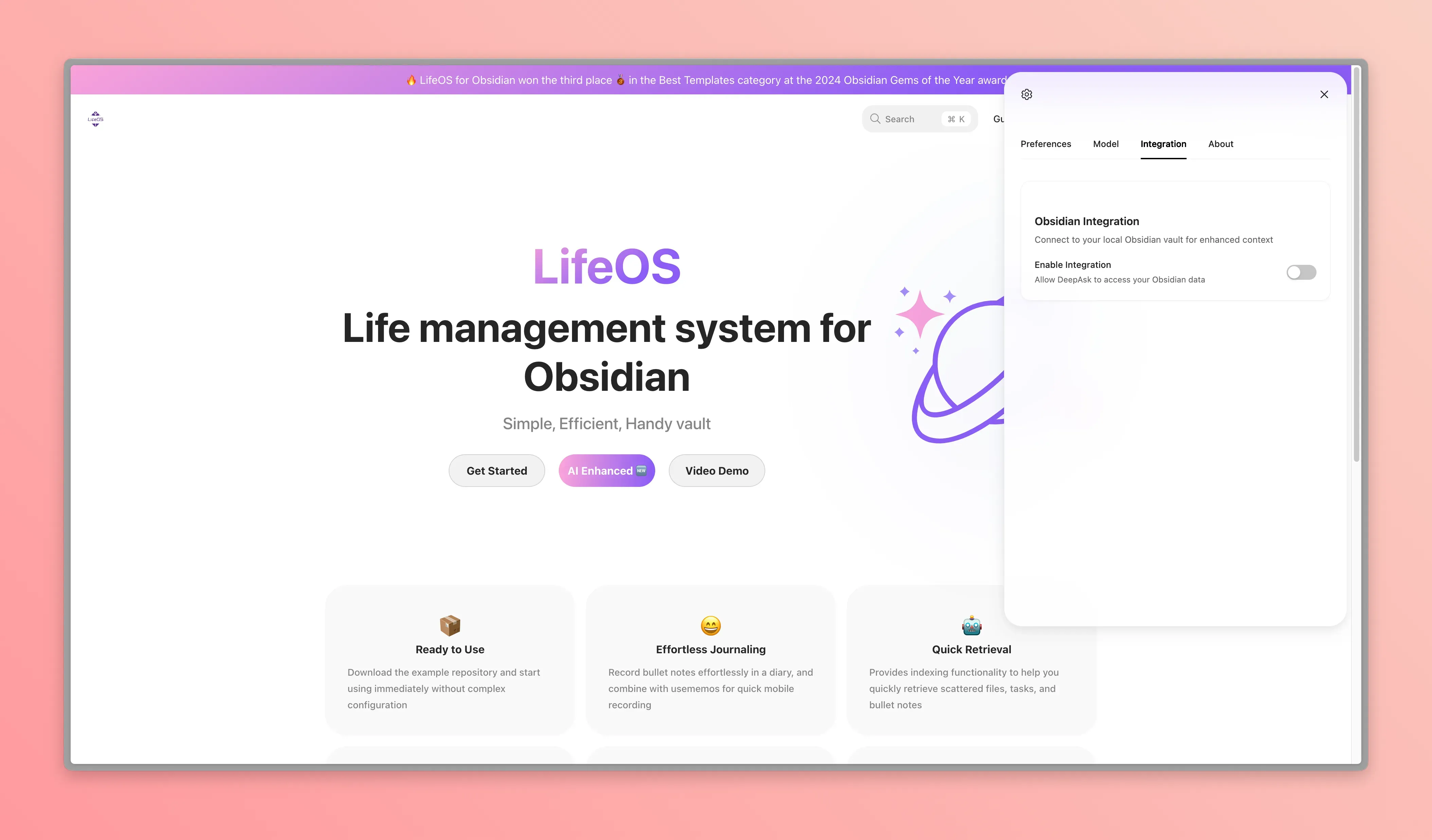
- Integration with Obsidian: Supports linking tags, context, and files from Obsidian to initiate Q&A on the current webpage
- Webpage Content Conversation: Directly chat with the content of the current webpage
- Codex CLI and Claude Code CLI: Supports Codex CLI or Claude Code CLI, while the Chrome extension adds webpage context into the same DeepAsk workflow
- Visible Reply Feedback: Shows a temporary animated reply placeholder before the first streaming token arrives
- Cross-platform Collaboration: Seamlessly switch between browser and Obsidian for a complete knowledge management workflow
✨ Main Features
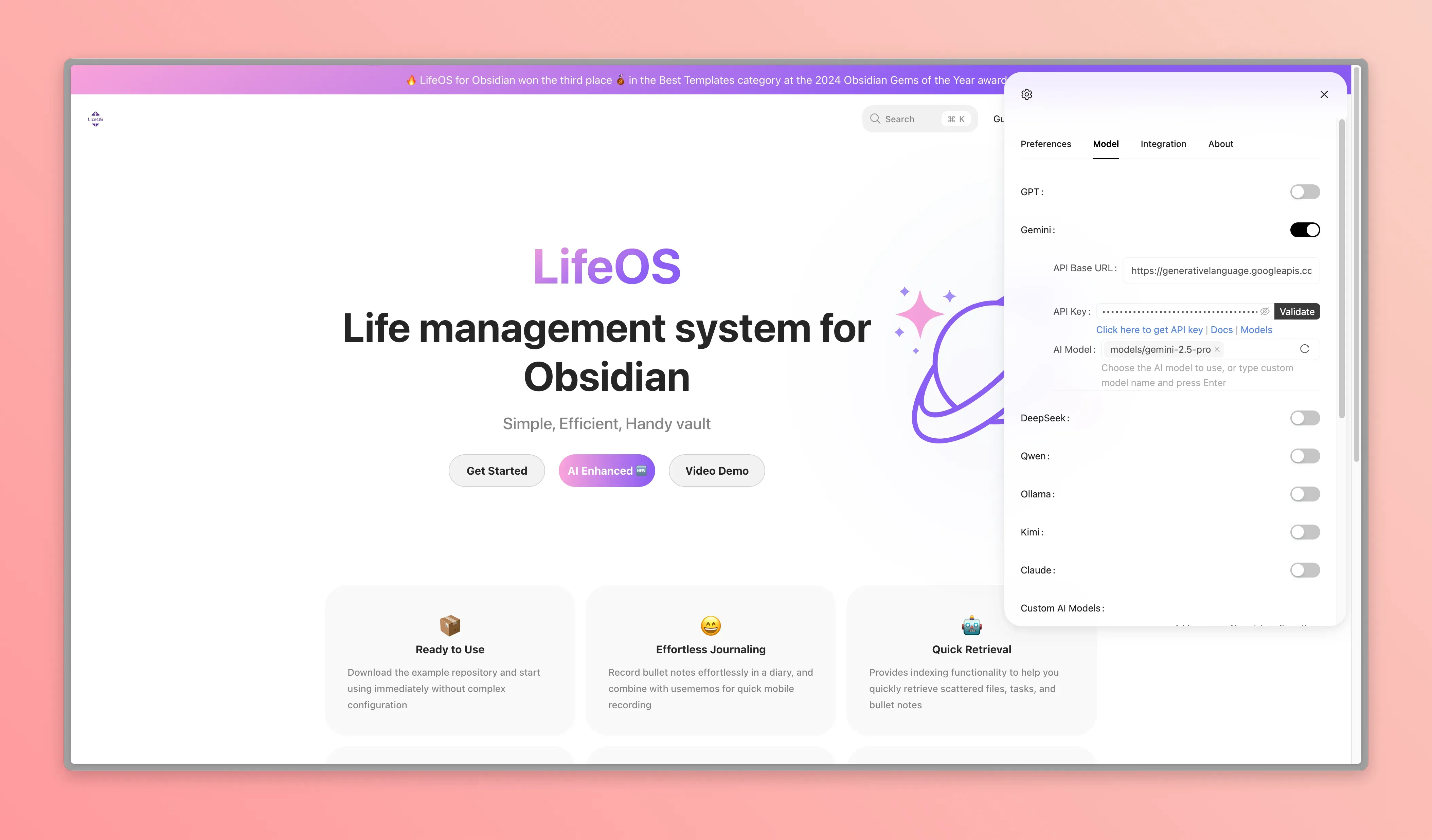
- 🤖 Multi-model and SDK Support:Support OpenAI-compatible providers and Anthropic SDK configuration, including GPT, Gemini, DeepSeek, Qwen, Kimi, Claude, Ollama, etc.
- 🧑💻 Codex CLI and Claude Code CLI:Supports Codex CLI or Claude Code CLI, with Chrome extension webpage context available in the same workflow
- 💻 Real-time Content Conversation:Automatically understand your note structure and content, support conversation with current notes and webpages
- 🏷️ Tag Integration:Context collection based on tags, intelligent content retrieval
- 📎 File Attachment:Support adding note files as context
- 🤖 Professional Prompt Selection:Built-in professional prompt library to enhance conversation quality
- 🗓 Time Range Limitation:Support filtering context content by time range
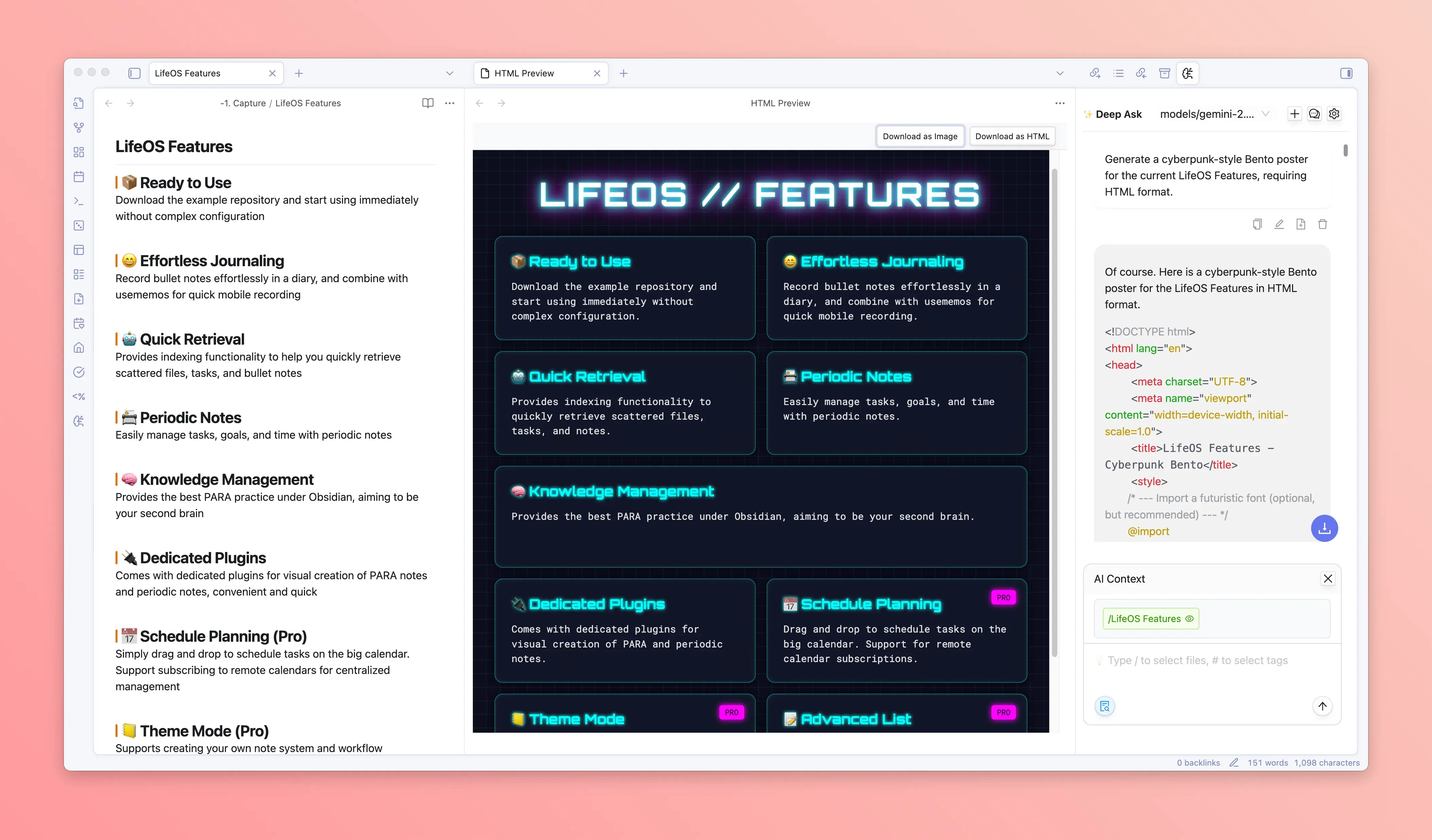
- 📷 Creative Poster Generation:AI generates HTML-formatted posters with preview and download support
- 💡 Quick Suggestions:Intelligent recommendation of common conversation templates
- 💬 Streaming conversation with reply placeholder:Real-time response, conversation history management, and an animated preparing-reply bubble before content arrives
- 🔄 Multi-session management:Support creating multiple conversation topics
- 🌍 Multi-language support:Support Chinese and English interfaces
- 🧩 LifeOS Skill (recommended):Install LifeOS Skill first so AI agents can understand and operate your LifeOS vault; the built-in MCP server remains available for MCP-compatible clients
🚀 Quick Start
Step 1: Install Prerequisites
Deep Ask depends on the Dataview plugin, please ensure it is installed and enabled:
- Open Obsidian settings
- Enter the "Community plugins" section
- Search and install Dataview
- Enable Dataview plugin
Step 2: Install Deep Ask Plugin
- Download the plugin file to the Obsidian plugin directory, usually in your repository's
.obsidian/pluginsdirectory - Restart Obsidian
- Enable Deep Ask in the plugin list
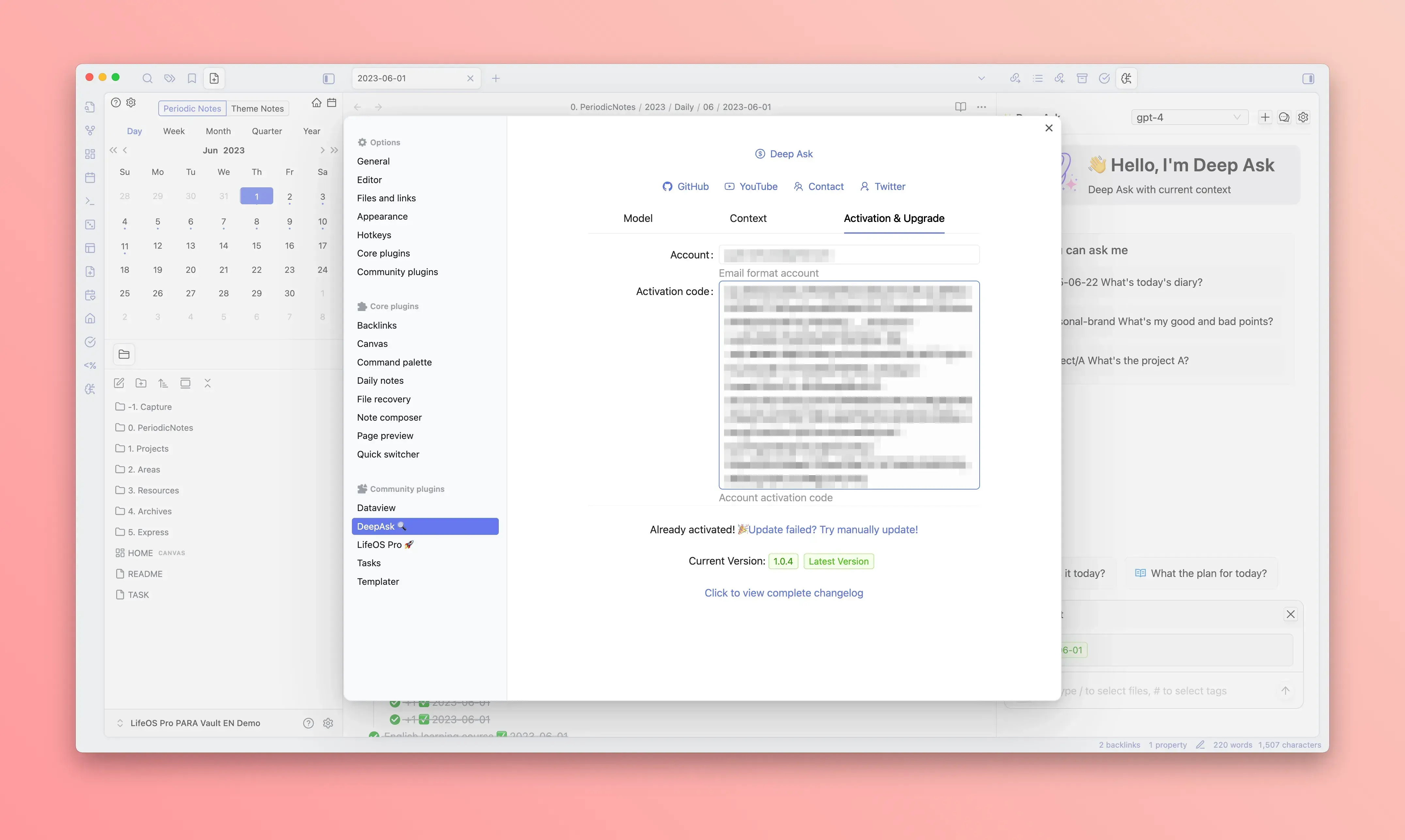
Step 3: Activate the Plugin
- Open the plugin settings page
- Enter the "Activation" tab
- Enter your account email and activation code
⚙️ Configuration Guide
AI Model Configuration
In the "AI Model" tab of the settings page, you can configure the supported AI services:
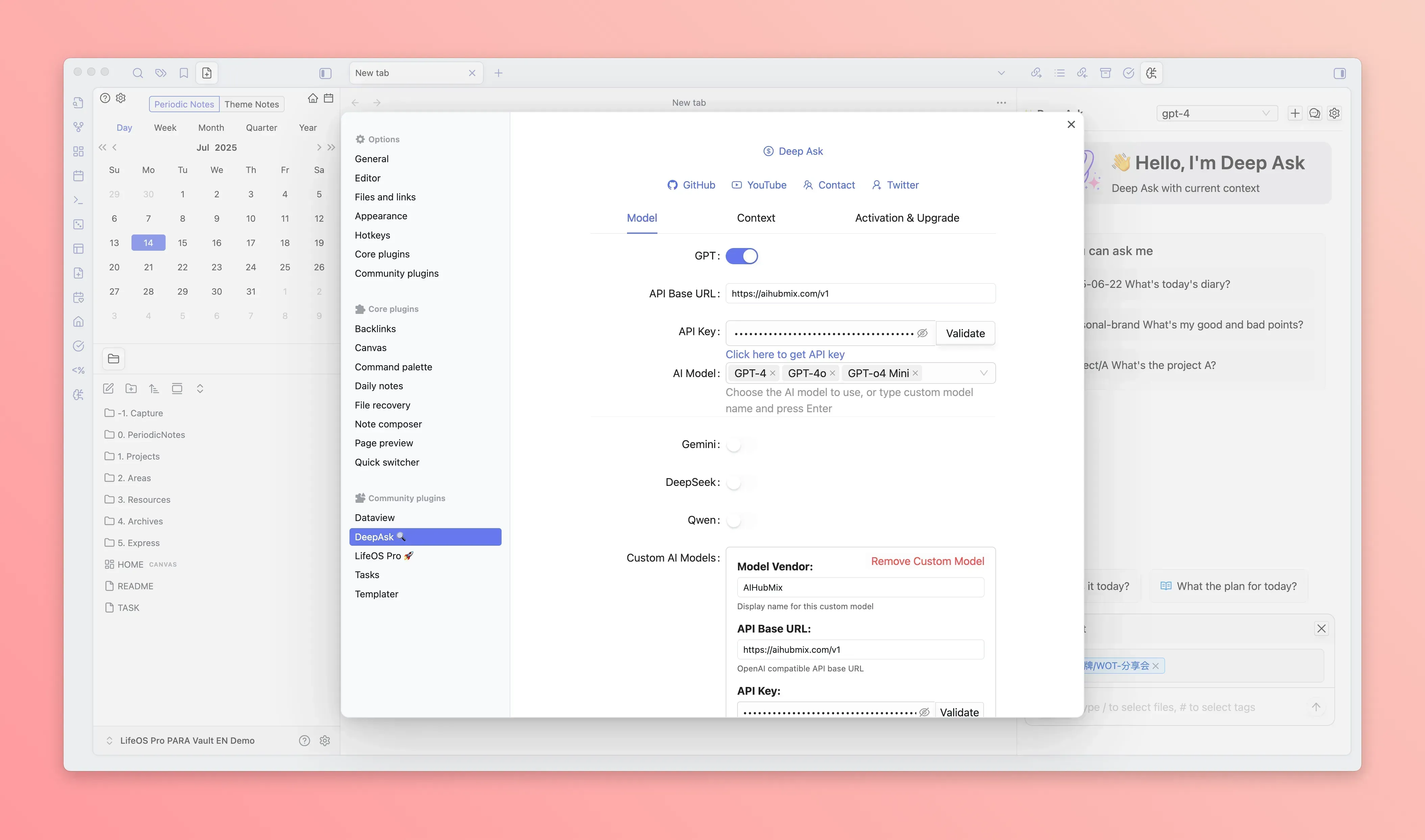
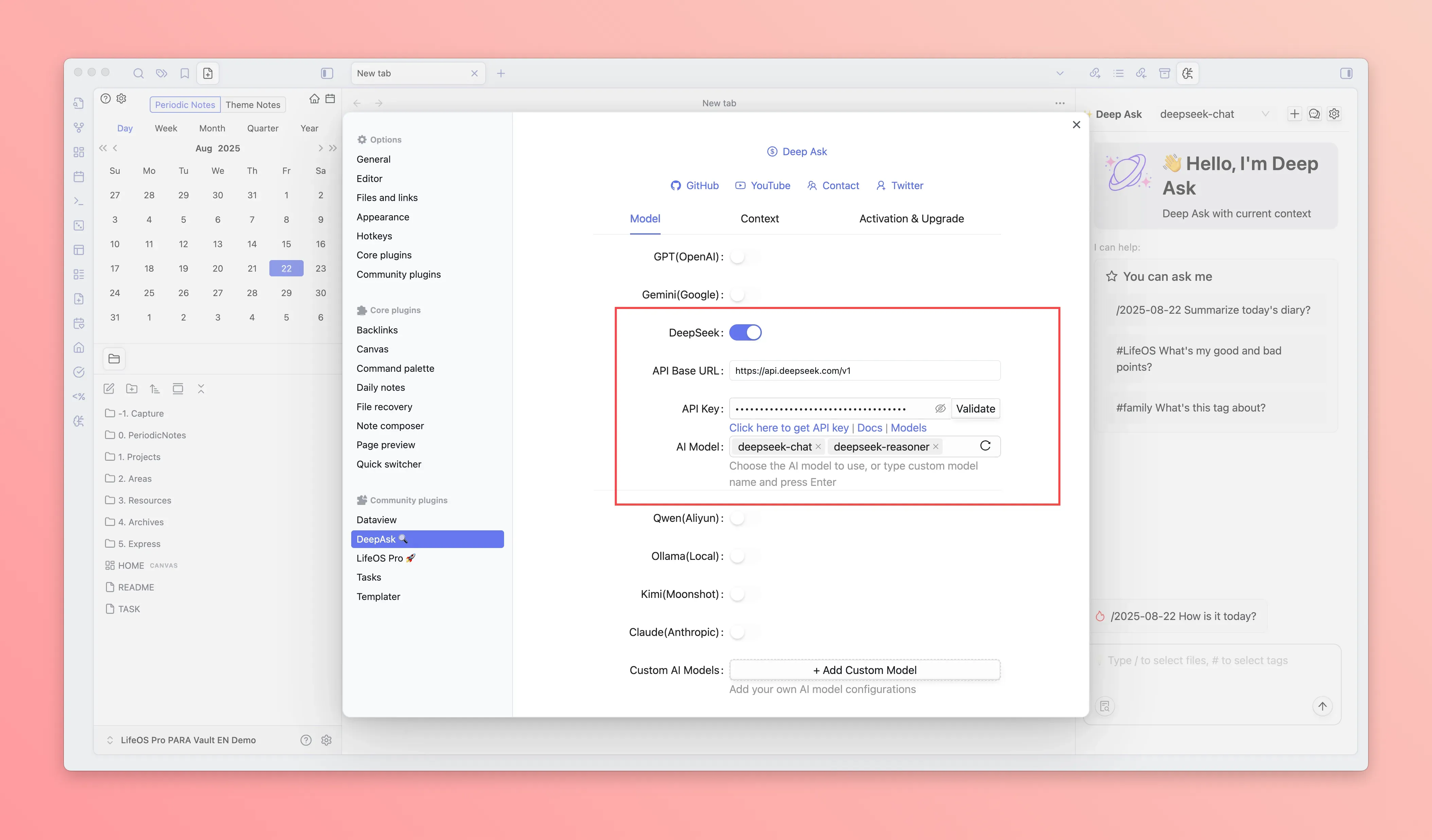
Here is an example of configuring the DeepSeek model:
🔵 DeepSeek Configuration
Fill in the API Key, and then click the AI Model, and select the specific model to enable:
You can also customize the AI model configuration:
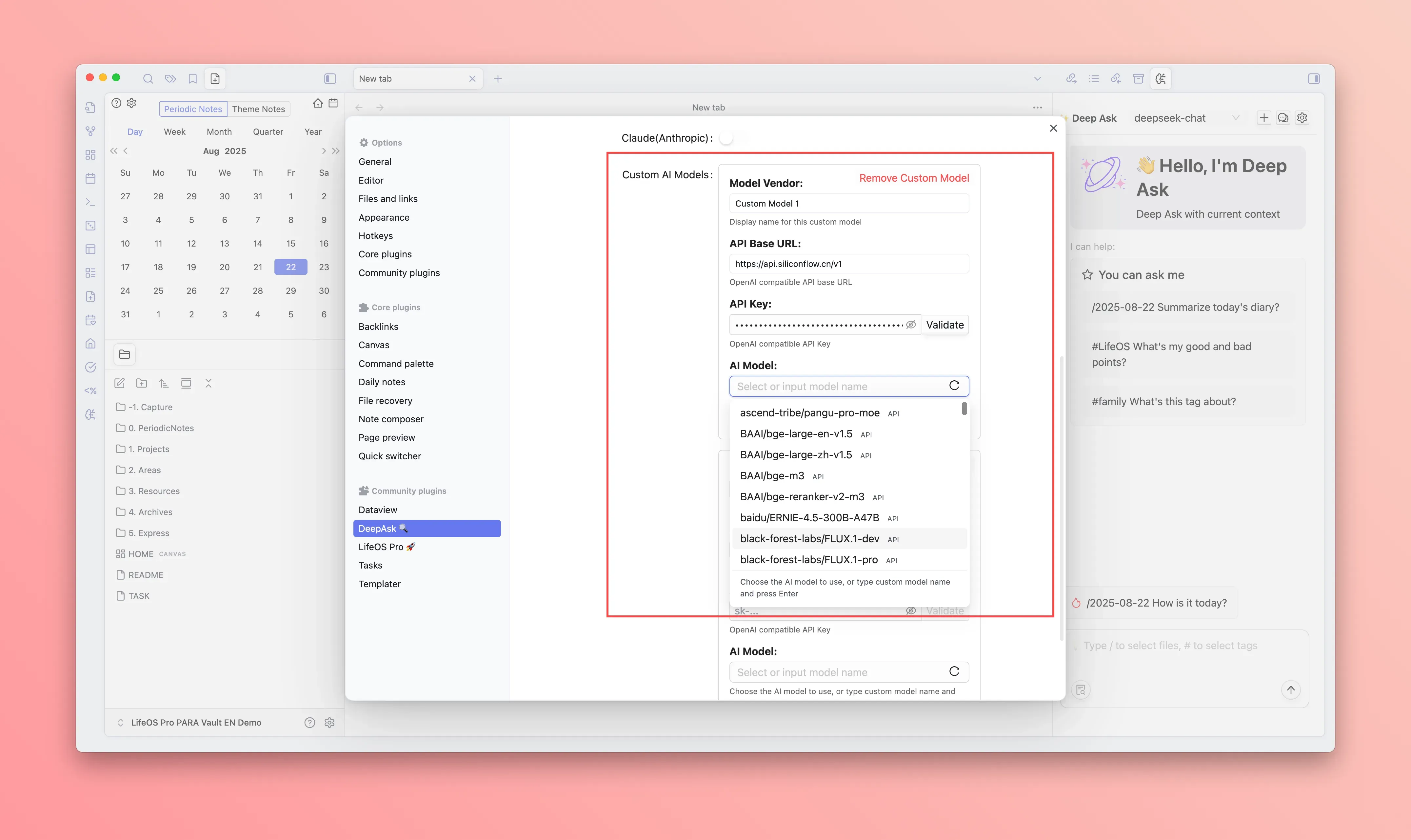
🟢 Custom Configuration
You can customize the AI model configuration, supporting the following parameters:
- Base URL:The base URL of the AI service
- API Key:The API Key of the AI service
- AI Model:The supported models of the AI service
Local CLI safety boundaries
When you select Codex CLI or Claude Code CLI, DeepAsk resolves the execution policy before launching the process. Local CLIs cannot reuse the plugin's per-tool diff, approval, and undo protocol, so their boundary is intentionally stricter than ordinary API models.
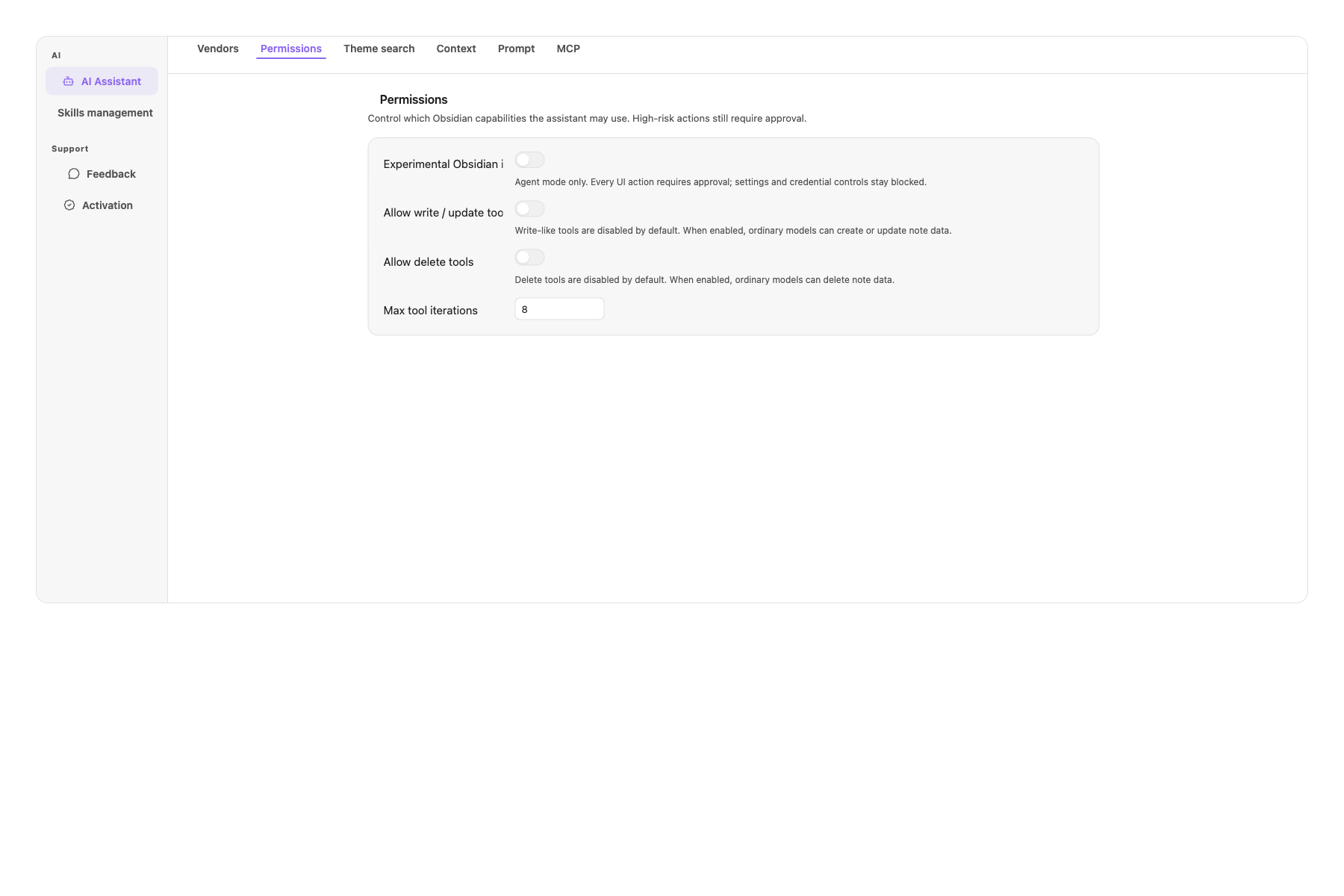
DeepAsk records the selected policy as tool activity. If you reject whole-vault access, the CLI is not launched; rejection and execution failures remain visible in the activity state. Ask, Edit, and structured workflows never become writable just because mutation settings are enabled.
After approval, the local CLI may modify or delete files anywhere in the current vault for that turn. Approve only when the request is well scoped and your data is backed up or recoverable. When uncertain, stay read-only or use a test vault first.
Local CLIs require a desktop Node.js process and are unavailable in Obsidian Mobile. Mobile users can continue using configured API models and the plugin's embedded tools.
AI Context Configuration
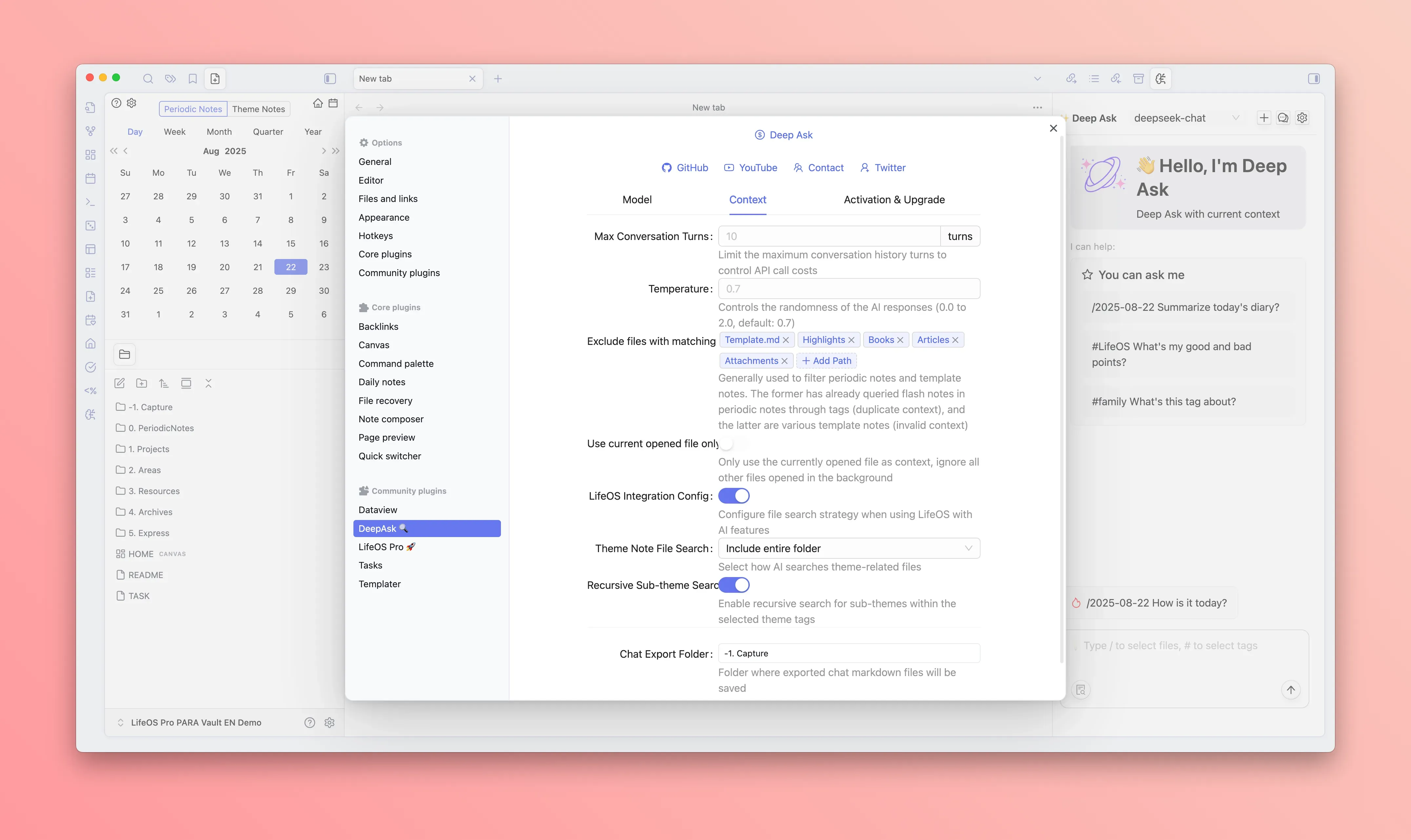
- Maximum conversation rounds:Set the number of conversation history to retain
- Temperature:Set the randomness of AI replies, the lower the more stable, the higher the more random
- Exclude files with matching tags:Generally used to filter periodic notes and template notes. The former has already queried flash notes in periodic notes through tags (duplicate context), and the latter are various template notes (invalid context)
- Use current opened file only:Only use the currently opened file as context, ignore all other files opened in the background
- LifeOS Integration Config:Configure file search strategy when using LifeOS with AI features
- Theme Note File Search:Select how AI searches theme-related files
- Include index files only:Only include index files
- Include entire folder:Include entire folder
- Recursive Sub-theme Search:Enable recursive search for sub-themes within the selected theme tags
- Theme Note File Search:Select how AI searches theme-related files
Conversation Settings
- Maximum conversation rounds:Set the number of conversation history to retain
- Temperature:Set the randomness of AI replies, the lower the more stable, the higher the more random
🎯 Usage Guide
Launching the Chat Interface
There are several ways to open the AI chat:
- Toolbar button:Click the Deep Ask AI icon in the sidebar
- Command Palette:
Ctrl/Cmd + Psearch "Deep Ask AI Chat" - Shortcut:Can be customized in settings
Basic Conversation
- Enter your question in the chat interface at the bottom
- Select the AI model (if multiple are configured)
- Click Send or press Enter to send
- AI will reply to your question in real-time
Advanced Features
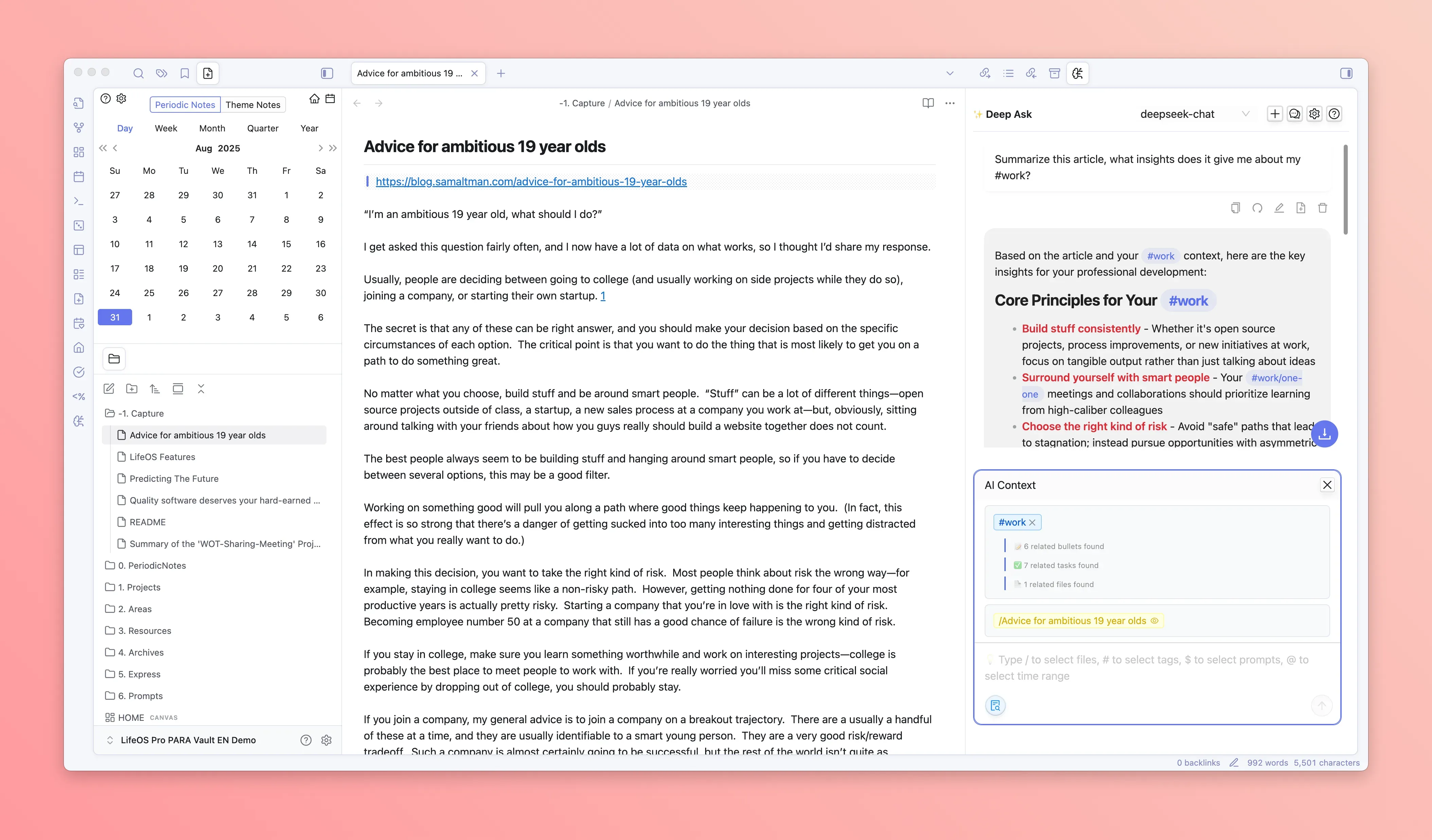
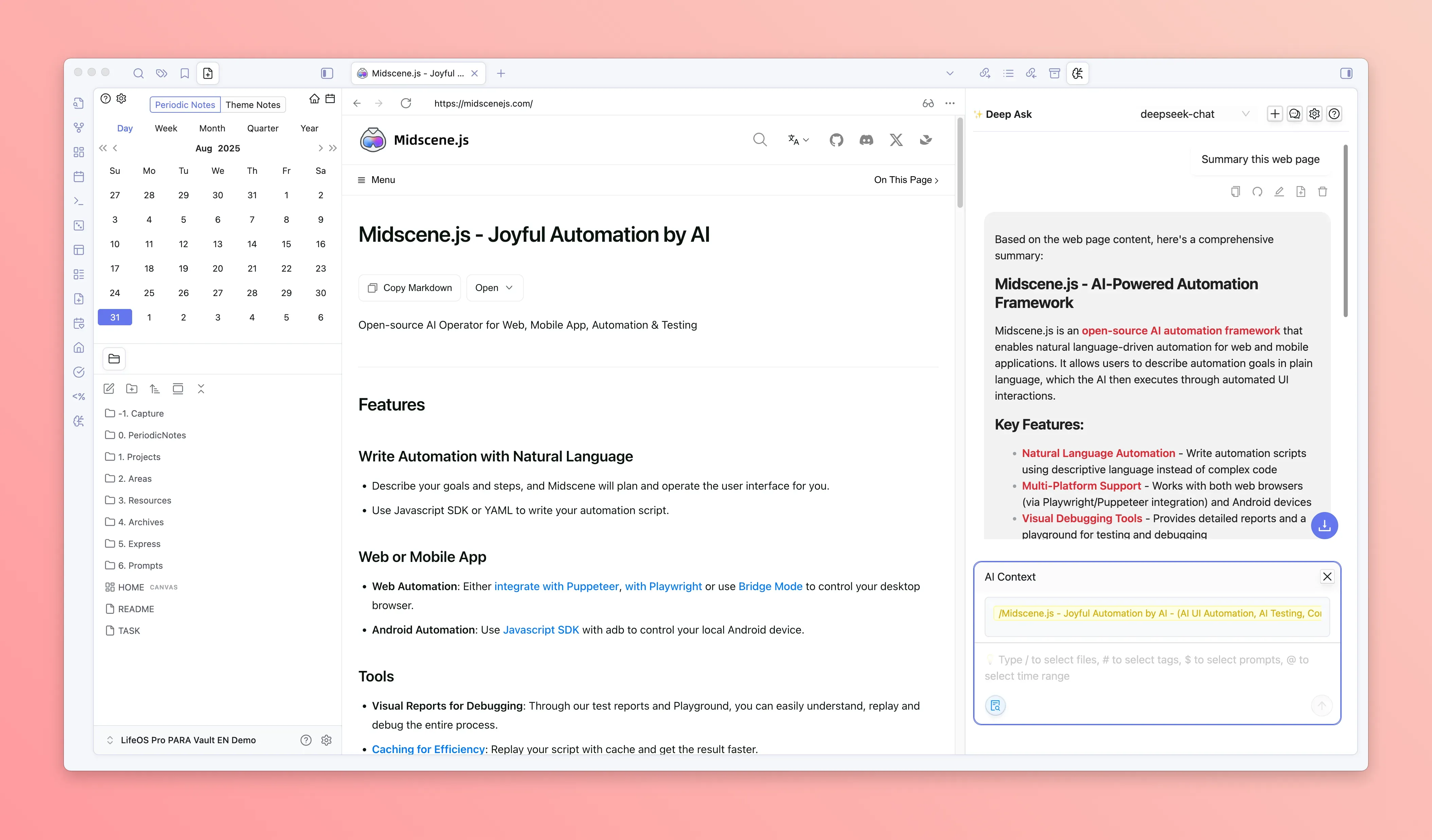
💻 Real-time Content Conversation
- Directly chat with the currently opened file and webpage, supporting multiple files and webpages as context, and linking with existing notes
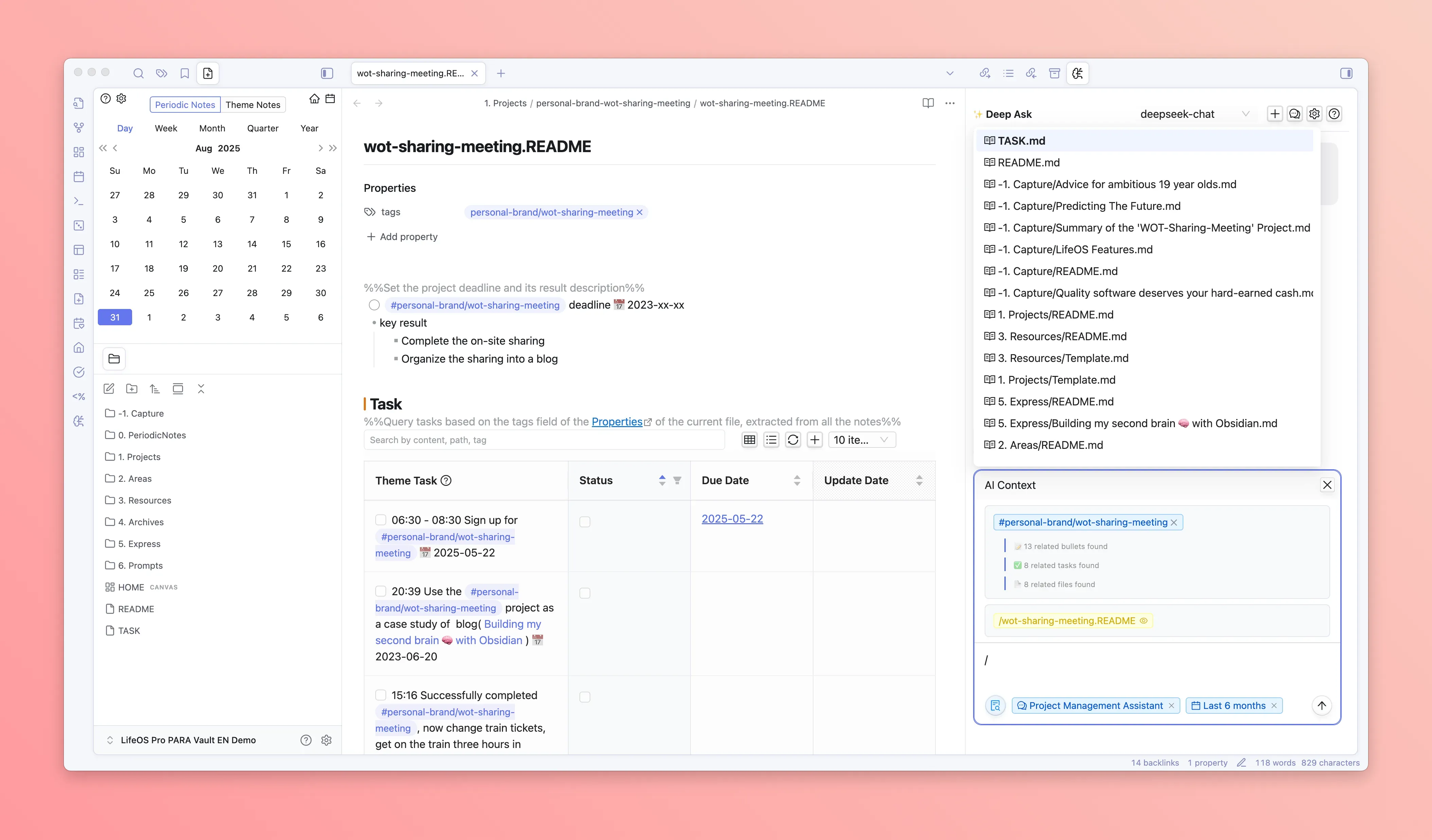
📎 File Attachment
- Trigger file search by typing /, select the file to add to the context
- The opened file will be automatically added to the context
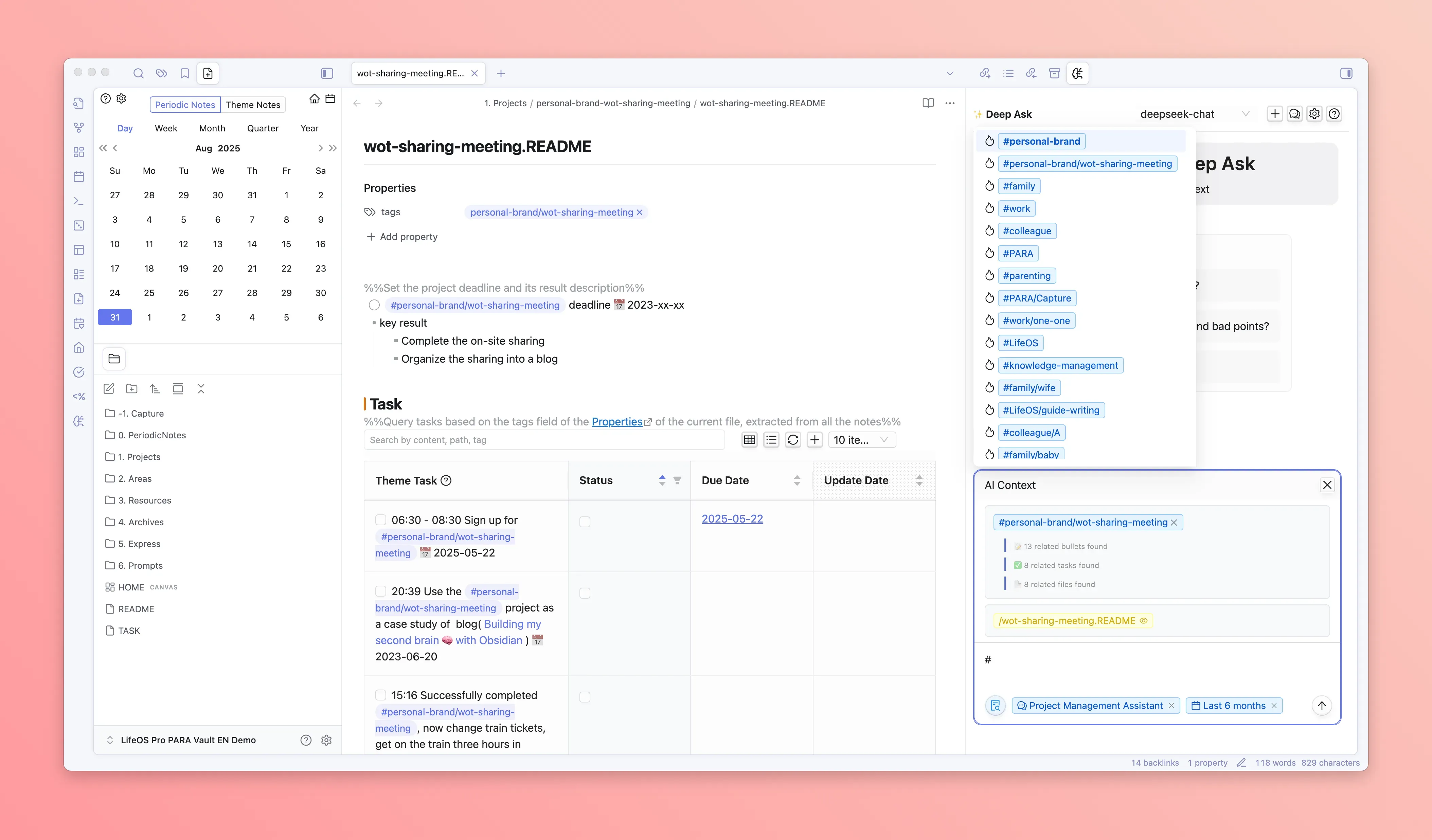
🏷️ Tag Integration
- Trigger tag search by typing #, select the tag to add to the context
- DeepAsk will automatically search for all records in the vault, including tasks, flash notes, and files with the selected tag
🤖 Professional Prompt Selection
- Enter / to trigger prompt search, select the prompt to add to the context
- DeepAsk will display a list of prompt files in the specified directory for selection
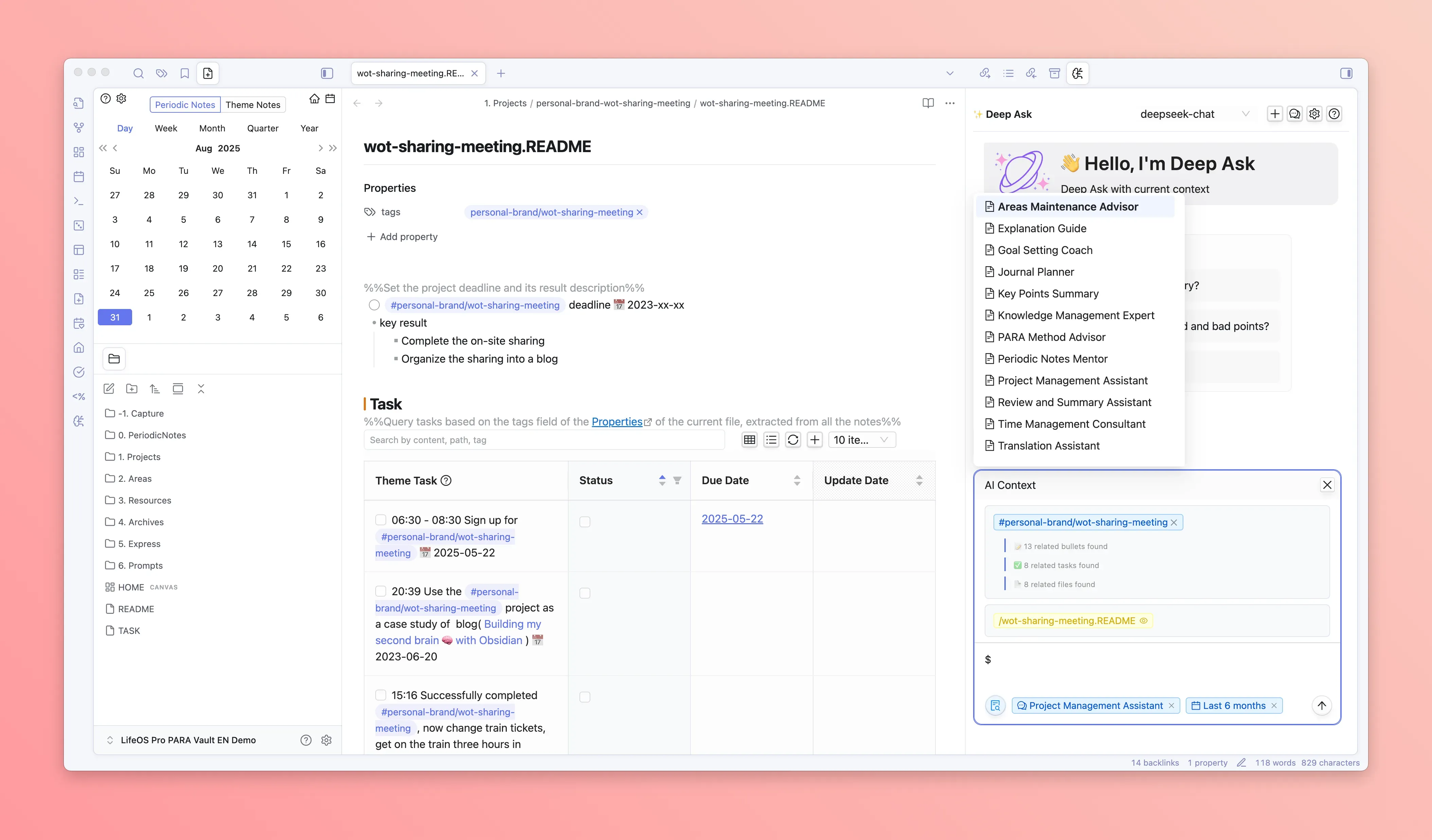
🧩 LifeOS Skill And MCP Compatibility For Ordinary Models
DeepAsk ordinary model chat can use agent skills and MCP tools without switching to Claude Code / Codex CLI mode. For LifeOS vault work, use LifeOS Skill first; it carries LifeOS-specific workflows and follows your vault settings. MCP remains available when a client specifically needs protocol-level tool access.
- Recommended: type
!lifeos your requestor$lifeos your requestto explicitly invoke the installed LifeOS Skill - If it is not installed yet, install it from LifeOS Skill or from the AI Connect settings tab
- Models can also call
deepask_list_skills/deepask_read_skillto inspect installed skills - Read/query embedded MCP tools remain available as the compatibility path, including file reading, task search, tag search, and periodic-note lookup
- On desktop, DeepAsk can still load external MCP servers from
.mcp.json,~/.claude/mcp.json, and~/.config/claude/mcp.json - Write, update, and delete tools are disabled by default and can be enabled from AI Connect
🗓 Time Range Limitation
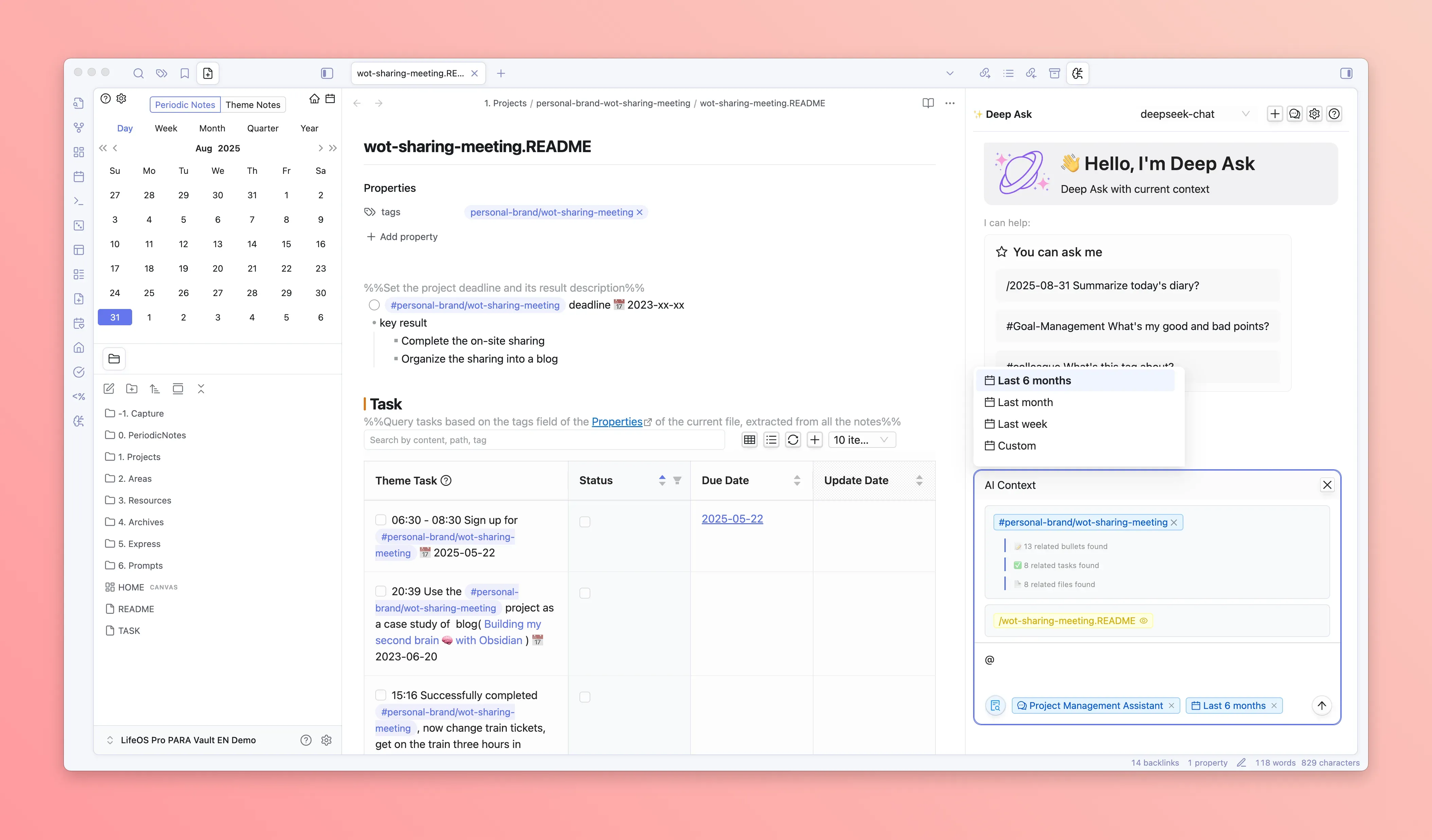
- Enter /2025-08-22 to trigger time range limitation
- DeepAsk will automatically limit all matching context (files, tags) to the specified time range
📷 Creative Poster Generation
- Require AI to generate HTML-formatted posters
- Click the "eye" preview button below the AI reply to view and download the poster
💬 Session Management
- Click "+" to create a new conversation
- Each conversation manages the context independently
✏️ Message Editing
- Hover to display the edit button
- Support editing the sent message, triggering AI to regenerate the reply
- Support clicking the regenerate button next to the message, triggering AI to regenerate the reply
💾 Download AI Conversation
- Click the plus button next to the message, and the AI reply will be appended to the current note
- Click the download button in the lower right corner of the dialog, and the entire conversation will be downloaded as a Markdown file
💡 Quick Suggestions
In the blank conversation, Deep Ask will display commonly used suggestions:
- /2025-08-22 Summarize today's diary?
- #SwapHouse What are the good and bad things I did?
- #HistoryCycle Summarize this tag?
🔌 MCP Server
Recommended path: use LifeOS Skill first for Claude Code, Codex, and other skill-aware agents. The skill understands LifeOS-specific folders, templates, daily notes, tasks, and review workflows without requiring manual MCP server configuration.
Deep Ask also includes a built-in MCP (Model Context Protocol) server for tools that require MCP compatibility, allowing clients like Claude Desktop or Cursor to access your Obsidian vault through a local protocol endpoint.
What is MCP?
MCP (Model Context Protocol) is an open protocol that allows AI applications to securely connect to external data sources and tools. In LifeOS workflows, treat MCP as the compatibility layer; if your AI agent can install skills, LifeOS Skill is the recommended entry point.
Recommended: LifeOS Skill
For Claude Code, Codex, and other skill-aware agents, install LifeOS Skill:
Then ask the agent:
Continue with MCP configuration only when your client specifically connects through MCP.
MCP Compatibility Configuration
Claude Desktop MCP Compatibility Configuration
- Make sure the Deep Ask plugin is enabled and running
- Open the Claude Desktop configuration file:
- macOS:
~/Library/Application Support/Claude/claude_desktop_config.json - Windows:
%APPDATA%\Claude\claude_desktop_config.json
- macOS:
- Add the following configuration:
- Restart Claude Desktop
Cursor MCP Compatibility Configuration
If Cursor cannot use LifeOS Skill for this workflow, add the MCP server in Cursor settings:
Claude Code MCP Compatibility Configuration
For Claude Code, LifeOS Skill is the recommended path. Create a .mcp.json file in your project root only when you need MCP compatibility:
Available Tools
When you use LifeOS Skill, ask for these operations in natural language. If you must use MCP compatibility, the server exposes the following underlying tools for AI assistants:
File Operations
Task CRUD Operations
Bullet (Fleeting Note) CRUD Operations
Periodic Notes Query
Parameters:
year(required): Year, e.g., 2024quarter: Quarter (1-4)month: Month (1-12)week: ISO week number (1-53)day: Day of month (1-31, requires month)includeQuarters: Include quarterly notes (only for yearly)includeMonths: Include monthly notes (for yearly/quarterly)includeWeeks: Include weekly notes (for yearly/quarterly/monthly)includeDays: Include daily notesincludeContent: Include note content (default: true)includeVirtualDocument: Include virtual document with query results
Usage Examples:
Use Cases
- Knowledge Retrieval: Use LifeOS Skill first to search your notes for relevant information; MCP-compatible clients can use the same vault data through the server
- Content Summarization: Have AI read and summarize your note content
- Cross-tool Collaboration: In IDEs like Cursor, use LifeOS Skill when available and MCP when the IDE requires protocol-level access
- Automated Organization: Let AI help organize and archive your notes
- Task Management: Create, query, update, and delete tasks directly through AI assistants
- Quick Capture: Record fleeting thoughts and ideas as bullets through AI without opening Obsidian
Important Notes
- Make sure Obsidian is open and Deep Ask plugin is running
- The MCP server default port is
51377; LifeOS Skill does not require configuring this port manually - Authorization uses your Deep Ask activation code
- Only supports local access (127.0.0.1) for security
🛠️ Troubleshooting
Common Issues
Q: AI does not reply or reply incorrectly? A: Check if the API Key is correct, and the network connection is normal
Q: Unable to find related note content?
A: Check if the path filtering is set correctly, and check if the Dataview plugin is working properly
Q: Plugin startup failed? A: Check if the Obsidian version meets the requirements, and the Dataview plugin is installed
Q: Activation code invalid? A: Check if the email and activation code are correct, and contact the developer for support
Log Debugging
- Open the developer tools (
Ctrl/Cmd + Shift + I) - View the error information in the Console tab
- Troubleshoot based on the error information
📚 Best Practices
- Organize knowledge structure:Establish a clear folder and tag system to facilitate AI retrieval
- Use context reasonably:Select related files and tags to improve answer quality
- Classify conversation:Create independent conversations for different topics
🚀 More Features in Development
We're constantly working on new features to enhance your experience.
New features are constantly being added! For the complete changelog, please visit Changelog.